Thursday, July 30, 2015

ADO.NET Destination in SSIS

ADO.NET Destination in Bulk Insert Mode and Foreign Keys

Bulk Insert option for SSIS ADO.NET Destination which is available since SQL Server 2008 R2 improves data load speeds significantly. This option is enabled on the ADO.NET Destination component by selecting the “Use Bulk Insert when possible”check-box (Screen capture 1)
Screen Capture 1 – ADO.NET Bulk Insert
Using the bulk insert mode does come with a catch, especially when the destination table has Foreign Keys. You would notice after the data load, the WITH CHECK constraint on Foreign Key becomes WITH NOCHECK. Probably this behaviour is because of the ADO.NET Destination component’s implementation of SqlBulkCopy which ignores check constraints by default.  The net effect  is that the  ETL would fail to catch data integrity issues which might result in cube processing failures at downstream.
Suggested Workarounds:
1. Many ETL frameworks disable foreign keys before data loading to take advantage of parallel data loading and enable foreign keys just before cube processing. Such ETL frameworks would be immune to the above behaviour as the data integrity exceptions are caught before the cube gets processed.
2. Another alternative would be to use OLEDB Destination with fast load option which has comparable data load speeds as ADO.NET Destination in Bulk Insert mode.

Tuesday, July 28, 2015

Aggregate Transformation in SSIS

What is the Aggregate Transformation?

The Aggregate transformation is used to perform aggregate operations/functions on groups in a dataset. 

  • The aggregate functions available are- Count, Count Distinct, Sum, Average, Minimum and Maximum. 
  • The Aggregate transformation has one input and one or more outputs.
  •  It does not support an error output. 

When would you use the Aggregate Transformation?

As a rough rule, you should use the Aggregate transformation only when the data source cannot efficiently support the Aggregation processes by itself. If you are reading in data from a relational source, usually it will make more sense to have the server aggregate the data in a query before passing it into SSIS. An exception to this may be if you are hitting a live system and cannot afford to (or are not allowed to) load the server with queries. If you were reading from a Flat File source then you would have to use the Aggregate Transformation as the File System doesn’t provide any means to perform data operations.
The Aggregate transformation supports the following operations.
Group By: Divides datasets into groups. Columns of any data type can be used for grouping.
Sum: Sums the values in a column. Only columns with numeric data types can be summed.
Average: Returns the average of the column values in a column. Only columns with numeric data types can be averaged.
Count: Returns the number of items in a group.
Count distinct: Returns the number of unique non null values in a group.
Minimum: Returns the minimum value in a group. This operation can be used only with numeric, date, and time data types.
Maximum: Returns the maximum value in a group. This operation can be used only with numeric, date, and time data types.
The Aggregate transformation handles null values in the same way as the SQL Server relational database engine.
  • In a GROUP BY clause, nulls are treated like other column values. If the grouping column contains more than one null value, the null values are put into a single group.
  • In the COUNT (column name) and COUNT (DISTINCT column name) functions, nulls are ignored and the result excludes rows that contain null values in the named column.
  • In the COUNT (*) function, all rows are counted, including rows with null values.
Now let me demonstrate how you can create an SSIS package with Aggregate   transformation

Go to START ==> Microsoft SQL Server 2008 ==>SQL Server Business Intelligence Development Studio to launch BIDS.

Then go to File menu==> New Project ==>Select “Business Intelligence Projects” in the left tree pane -> Select “Integration Services Projects” and name the project as you wish and click OK.

Here in this example 

we want to get the sum of the sales amount  for each Color and English product name  based on the Dimproduct and FactInternetsales tables  data from AdventureworkDW Database. 


We want to perform database equivalent of SUM(SALESAMOUNT) GROUP BY Color and EnglishproductName  operation.


Here, we have Dimproduct and FactInternetsales  tables are OLEDB Source.

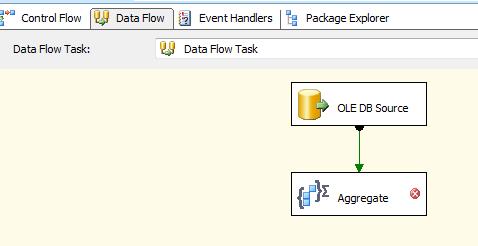
Now Drag and Drop Aggregate Transformation As Show below.
Double-click the Aggregate transform to open the editor. Next in the lower pane we select   the Input Column, se


What is the Aggregate Transformation?

The Aggregate Transformation provides a means of carrying out some simple aggregations on data pushed through SSIS, similar to those found in SQL where using “Group By” clause. The available aggregations are:
  • Group by
  • Sum
  • Average
  • Count
  • Count distinct
  • Minimum
  • Maximum
Below is a snapshot of the output from the example package Data Flow 1, where the SalesOrderHeader table in AdventureWorks is grouped by OrderDate, the Count aggregation is applied (by selecting the “(*)” column in the column selector) and the TaxAmt field is both Summed and Averaged. Note the row counts going in and coming out of the transformation – because of the grouping much fewer rows come out of the transform than are pushed in.


b
Fig 1: The Aggregate Transformation and its output

How to cut the same dataset different ways

The Aggregate Transformation can support multiple outputs – this means you can read the data set into memory once, then cut it up as many ways as you like. By clicking the Advanced button on the Aggregate tab of the component editor, a new grid is revealed. If you enter a new value in the “Aggregation Name” column, the column selector is enabled and you can create a new set of aggregations which will be delivered as a new output for the component, as demonstrated in Data Flow 2 of the example package.


Fig 2: The Aggregate Transformation with multiple outputs

Improving Performance in the Aggregate Transformation

The Aggregate Transformation is pretty quick as it runs in memory, but if you are shifting very large volumes of data through it and it is slowing down there are a few tweaks available. First is the Keysand KeyScale properties. These tell the component how many “Group By” distinct groups it should be prepared to handle. By default the value for KeyScale is “Unspecified”, but can be set to low (up to 500,000 keys), medium (up to 5m keys) or high (25m keys). If you are more certain of how many Keys you will be writing you can use the Keys property, which overrides KeyScale, and you can enter the amount of expected Keys. This can either be set per Aggregation output in the advanced editor grid, or globally using the Advanced tab of the editor. If you are using a CountDistinctaggregation you can set the CountDistinctScale and CountDistinctKeys properties which operate in the same way. Usually there is no need to adjust these properties.

The Audit Transformation in SSIS

SSIS Audit Transformation
Fig 1: The Audit Transformation

What is the Audit Transformation?

The Audit Transformation is a simple component that simply adds the values of certain System Variables as new columns (that you name) to the data flow. It allows for a single System Variable to be added as many times as you like. An example is below:
Same can be Achived using Derived Column Transformation, 
redundant though as adding a new column with the value of a System Variable can just as easily be done within a Derived Column Transformation,
Text 2
Fig 2: Column selection
These are the variables that are available:
  • ExecutionInstanceGUID – The GUID that identifies the execution instance of the package.
  • PackageID – The unique identifier of the package.
  • PackageName – The package name.
  • VersionID – The version of the package.
  • ExecutionStartTime – The time the package started to run.
  • MachineName – The computer name.
  • UserName – The login name of the person who started the package.
  • TaskName – The name of the Data Flow task with which the Audit transformation is associated.
  • TaskId – The unique identifier of the Data Flow task.
The sample package demonstrates some of these columns in the Data Flow “1 > Audit Transformation”

When would you use the Audit Transformation?

The most likely scenario for using this component is in creating log entries or adding metadata to error traps. It does seem  a little redundant though as adding a new column with the value of a System Variable can just as easily be done within a Derived Column Transformation, which offers greater flexibility. So the short answer is, I probably wouldn’t use this transformation. In the sample package I have a demo of using the Derived Column Transformation to achieve the same goals as the Audit Transformation, in the Data Flow “2 > Derived Co

Difference between OLE DB and ODBC?

ODBC (Open Data Base Connectivity) 

  • It is a connection method with data source.
  • It requires to set up a data source, or what is call DSN (Database Source Name) using a SQL Driver or other drivers if connecting to other database types.
  • Most database systems support ODBC.
  • ODBC provides access only to relational databases.

OLE DB (Object Linking and Embedding Database) 

  • It is a successor of ODBC.
  • Access to data regardless of its format or location i.e. access the data in uniform manner.
  • OLE DB does not require a DSN.
  • OLE DB provides full access to ODBC data sources and ODBC drivers.
  • In many cases the OLE DB components offer much better performance than the older ODBC.
  • OLE DB provides access to relational and non-relational databases.

XML Source Task in SSIS

XML Source Task in SSIS
Suppose we want use a XML file as a data source for further processing on it’s data.

SSIS XML source is basically used when we want to read the data from XML files.
First you will have to create a SSIS Project.  You can refer post ‘How to Create SSIS Project?‘ to create this.
1. Now in the project, drag and drop the ‘Data Flow Task’ into control flow tab and double click on it. It will redirect you to  Data Flow Tab.
2. Drag and Drop the ‘XML Source’ from SSIS toolbox and double click on it. Below window will appear-
MSBI__Community_Post10_Window1
3. Now browse the xml file and click on ‘Generate XSD’.
What is XSD?
XSD (XML Schema Definition) is a W3C recommendation that defines the way to utilize the elements in an XML file.It specifies how to formally describe the elements in an Extensible Markup Language (XML) file.XSD can also be used for generating XML documents that can be treated as programming objects. In addition, a variety of XML processing tools can also generate human readable documentation, which makes it easier to understand complex XML documents.
Below window will open to save the XSD file. Click on Save.
MSBI__Community_Post10_Window2

4.  Now click on ‘Columns’, it will show the below Warning Message which is for length of the columns and System will automatically use DT_WSTR (lenght -255).
If you don’t want to use it, in this case you need to edit XSD file manually. In this case we are accepting the warning message and click on OK.
MSBI__Community_Post10_Window3
5. After accepting warning message, columns will be available as below. Click on ‘OK’.
MSBI__Community_Post10_Window4
6. Now drag and drop a ‘Derived Column’ to preview the data and connect it with XML source using data path.
7. Now enable the data viewer and execute the package. Results will appear as below-
MSBI__Community_Post10_Window5

ADO .NET Source Task in ssis

ADO .NET Source consumes data from SQL Server, OLE DB, ODBC or ORACLE using corresponding .Net Framework data provider. Use a T-SQL statement to define the result set.
For Example: Extract data from SQL server with the .Net Framework Data provider for SQL Server.
ADO .Net is an extra Layer over OLE DB and ODBC with retro features at a cost of performance.
The ADO .NET Source is very similar to the OLE DB source, but adds overhead when extracting data from OLE DB compliant sources so should only be used to access those sources when specifically required,
For Example: When they need to be access in code. For non OLE DB compliant sources, such as ODBC, it adds a wide range of connection capabilities and extends the number of sources SSIS can work against.
First you will have to create a SSIS Project.  You can refer post ‘How to Create SSIS Project?‘ to create this.
1. Now in the project, drag & drop a Data Flow Task in Control Flow Tab.
2. Right click in Connection Manager Window.Select ‘New ADO.NET Connection…’.Refer below screenshot-
MSBI__Community_Post9_Window1
3.  Configure ADO .NET Connection Manager window will open. Click on ‘New’.
MSBI__Community_Post9_Window2
4.  Connection Manage window will open as below having  ‘.Net Provider\SQL Client Data Provider’ by default.
While in the window SQL Client Data Provider, OracleClient Data Provider and ODBC Data Provider are .Net Providers where as there are several .Net Providers for OLEDB.
Microsoft is planning to depreciate the OLE DB in next SSIS version release therefore we are not using SQL Server Native Client 11.0 as it will be removed in next SSIS versions.
Microsoft has also provided SqlClient Data Provider which is basically a .Net Provider and very specific.  Its not a extra layer, just a .Net Manager connection to SQL Server.
MSBI__Community_Post9_Window3
5. Now select the appropriate Server Name and Database name.
MSBI__Community_Post9_Window4
6. Click on Test Connection. A new window will appear having message ” Test connection succeeded”.
7. Click on ‘OK’.
8. ADO . Net  Connection has been created now. Double click on Data Flow Task, it will redirect you to Data Flow window.
9. Drag & Drop an ADO .NET Source and double click on it.  ADO .NET source editor window will appear where ADO.Net Connection has automatically selected as below.
MSBI__Community_Post9_Window5
10. Now select the table ‘Currency’ as below and Click on ‘Preview’ button.
MSBI__Community_Post9_Window6
MSBI__Community_Post9_Window7
11. Now drag and drop a ‘Derived Column’ to preview the data and connect ADO .Net source to it using data path.And enable the Data Viewer.
12. Execute the package. Results will be as below-
MSBI__Community_Post9_Window8
I hope you have enjoyed this tutorial and it is useful for you.

ODBC Destination task in ssis

ODBC Destination task is used as a data source destination task in SSIS package. ODBC supports bulk upload. So, we can upload data faster now. There are two data loading options available in this task.
  1. Batch – It is the most efficient insertion method. It is manged by batch size value. If batch method is not supported by the provide then it chooses Row by Row option automatically.
  2. Row-by-Row – This method uses SQL Execute function to insert rows one at a time.

Limitation:

we cannot create destination table in design mode as we can do with OLE DB or ADO Net.
Implementation
. I have already create a table for the destination task. Because, we cannot create destination table in design mode as we can do with OLE DB or ADO Net.
Step 1: Add ODBC destination task and connect with ODBC source
pic1Step 2: Edit ODBC destination task and select data source, table and map columns between source and destination.
pic1
Mappings
pic1We have configured the ODBC destination task.
Step 3: Execute package.
pic1We have learned to use ODBC destination task in this blog post.

Popular Posts

Recent Posts

Unordered List

Text Widget